All Stories
Showing posts with label Tips&Tricks. Show all posts
Showing posts with label Tips&Tricks. Show all posts
Friday, 28 February 2014
Multi Premium Accounts (Cramit, Extabit, Uploading, Hotfile, Turbobit and many more....): Daily Updates

Hey everyone these are the working FileSonic, Rapidshare, Wupload, Uploading, Hotfile, Turbobit and so many more Premium accounts. I will post a premium account everyday and i am trying to cover all popular premium accounts .
I update it everyday so if the account doesn't work then either comment or email me and get a new one..

Username: 0687561
Password: serpico
Username: internazional57
password: cuchetto07

Premium Cookie(s):
A3716F4B7FE4536B905ABF2D3ACADFB80C3A0469932FE9DDB181F9510107505F5D425307EAE792C78A838C35595A2850
Username:
Password:
Username:
Password:
RAPIDSHARE Premium Accounts/Cookies
Premium Cookie(s):
A3716F4B7FE4536B905ABF2D3ACADFB80C3A0469932FE9DDB181F9510107505F5D425307EAE792C78A838C35595A2850
How to use Cookies?
HOTFILE Premium Accounts/Cookies

Username:
Password:
Username:
Password:
Uploaded Premium Accounts/Cookies
Premium Cookies:
How to use Cookies?
Extabit Premium Account(s):
 Premium Cookies:
106328d606b9a94e6dadc606fe21eb02
7cbc479893e93b31cca9b8835da3fcb0
Other Premium Account(s)
Premium Cookies:
106328d606b9a94e6dadc606fe21eb02
7cbc479893e93b31cca9b8835da3fcb0
Other Premium Account(s)
4SHARED Premium Accounts & Cookies
 Username: haniakrim@gmail.com
Password: hani1980
Username: haniakrim@gmail.com
Password: hani1980
UPTOBOX Premium Accounts/Cookies

Username: coconico
Password: www.PreGen.tk
Username:
Password:
NETFLIX:

Username:
Password:
Username:
Password:

GIGANEWS Premium Accounts & Cookies:
Username: pupette
Password : pupette
Username: bobby1
Password : bobby1
DOWNLOADANI Premium Accounts & Cookies:

Username: yomismoyomismo69
Password: qwertyuiop
NOVAFILE Premium Accounts/Cookies:

Username: timster86
Password: timothy86
Username: mmdesh
Password: mmdesh10
UNIBYTES Premium Accounts/Cookies:

Username: 79643879612
Password: qwerty
Username: http.skynetsoft.ru@mail.ru
Password: C3ek9QRB
FILEVELOCITY Premium Account(s)/Cookies :

Username: furbound017
Password: furbound017
Username:
Password:
Fast-Debrid Premium Account / Cookie(s)
Premium Cookie(s): -7
Premium Javascript Cookie
How to use Javascript cookies
RYUSHARE Premium Account(s):

Username: jestona
Password: jestona

SHARE-RAPID Premium Accounts/Cookies
Username: registrado2
Password: 789012
Username: qwerty1
Password: qwerty


Username: mark_ramos@hotmail.com
Password : excal1ber
Username: heartdoc32@yahoo.com
Password: heartb
(Tested)
Turbobit Premium Account

Username: esh_abil@hotmail.com
Password: 771453
Username: harun@ozlemix.comPassword: eb887d629681
FirstLoad premium Account:
Username:
Password :
MegaShare Premium Account:
Username:
Password:
FileMonster Premium Account(s):

Username: texan2
Password : texan2
Username: amerigo
Password: vespuci
Premium Cooki(s):
FILEVELOCITY Premium Account(s):
Username: shankil
Password : premiumaccounts1.blogspot.com
SAARIE Premium Account(s):

Username: banjo
Password: banjo
Premium Javascript Cookie(s)
How to use Javascript cookies
Oron Premium Account(s):
UserName:
PassWord:
Fileserving Premium Account
Username :Password :FileMashine Premium AccountUsername:Password :Username:FastDebrid Premium AccountPassword :Premium Javascript CookiePremium Cookie(s):Bayfiles Premium Account:Username:Password:VideoBB Premium Account:Username:Password:Alldebrid Premium AccountUsername:Password:Premium Cookie(s):c120c30d8e40b1a46f124594


Multi Premium Accounts (Rapidshare, Cramit, Extabit, Uploading, Turbobit and more..)- (UPDATED) Saturday 02 March 2013
Multi Premium Accounts (Cramit, Extabit, Uploading, Hotfile, Turbobit and many more....): Daily Updates
Hey everyone these are the working FileSonic, Rapidshare, Wupload, Uploading, Hotfile, Turbobit and so many more Premium accounts. I will post a premium account everyday and i am trying to cover all popular premium accounts .
I update it everyday so if the account doesn't work then either comment or email me and get a new one..
Username: 0687561
Password: serpico
Username: internazional57
password: cuchetto07
Premium Cookie(s):
A3716F4B7FE4536B905ABF2D3ACADFB80C3A0469932FE9DDB181F9510107505F5D425307EAE792C78A838C35595A2850
Username:
Password:
Username:
Password:
RAPIDSHARE Premium Accounts/Cookies
Premium Cookie(s):
A3716F4B7FE4536B905ABF2D3ACADFB80C3A0469932FE9DDB181F9510107505F5D425307EAE792C78A838C35595A2850
How to use Cookies?
HOTFILE Premium Accounts/Cookies
Username:
Password:
Username:
Password:
Uploaded Premium Accounts/Cookies
Premium Cookies:
How to use Cookies?
Extabit Premium Account(s):
Premium Cookies:
106328d606b9a94e6dadc606fe21eb02
7cbc479893e93b31cca9b8835da3fcb0
Other Premium Account(s)
4SHARED Premium Accounts & Cookies


Username: haniakrim@gmail.com

Password: hani1980
UPTOBOX Premium Accounts/Cookies
Username: coconico
Password: www.PreGen.tk
Username:
Password:
NETFLIX:
Username:
Password:
Username:
Password:
GIGANEWS Premium Accounts & Cookies:
Username: pupette
Password : pupette
Username: bobby1
Password : bobby1
DOWNLOADANI Premium Accounts & Cookies:
Username: yomismoyomismo69
Password: qwertyuiop
NOVAFILE Premium Accounts/Cookies:
Username: timster86
Password: timothy86
Username: mmdesh
Password: mmdesh10
UNIBYTES Premium Accounts/Cookies:
Username: 79643879612
Password: qwerty
Username: http.skynetsoft.ru@mail.ru
Password: C3ek9QRB
FILEVELOCITY Premium Account(s)/Cookies :
Username: furbound017
Password: furbound017
Username:
Password:
Fast-Debrid Premium Account / Cookie(s)
Premium Cookie(s): -7
Premium Javascript Cookie
How to use Javascript cookies
RYUSHARE Premium Account(s):
Username: jestona
Password: jestona
SHARE-RAPID Premium Accounts/Cookies
Username: registrado2
Password: 789012
Username: qwerty1
Password: qwerty
Username: mark_ramos@hotmail.com
Password : excal1ber
Username: heartdoc32@yahoo.com
Password: heartb
(Tested)
Turbobit Premium Account
Username: esh_abil@hotmail.com
Password: 771453
Username: harun@ozlemix.comPassword: eb887d629681
FirstLoad premium Account:
Username:
Password :
MegaShare Premium Account:
Username:
Password:
FileMonster Premium Account(s):
Username: texan2
Password : texan2
Username: amerigo
Password: vespuci
Premium Cooki(s):
FILEVELOCITY Premium Account(s):
Username: shankil
Password : premiumaccounts1.blogspot.com
SAARIE Premium Account(s):
Username: banjo
Password: banjo
Premium Javascript Cookie(s)
How to use Javascript cookies
Oron Premium Account(s):
UserName:
PassWord:
Fileserving Premium Account
Username :Password :FileMashine Premium AccountUsername:Password :Username:FastDebrid Premium AccountPassword :Premium Javascript CookiePremium Cookie(s):Bayfiles Premium Account:Username:Password:VideoBB Premium Account:Username:Password:Alldebrid Premium AccountUsername:Password:Premium Cookie(s):c120c30d8e40b1a46f124594
No comments
Posted at 16:03 | by
Unknown
93.123.45.23:8008 HTTP NOA BG 26-sep-2013 14:49
93.123.45.23:8008 HTTP NOA BG 26-sep-2013 14:49
181.14.202.228:8080 HTTPS NOA AR 26-sep-2013 14:48
222.88.242.213:9999 HTTPS NOA CN 26-sep-2013 14:46
82.200.164.226:3128 HTTP NOA KZ 26-sep-2013 14:44
98.190.245.179:8080 HTTPS NOA US 26-sep-2013 14:44
200.124.242.100:8080 HTTP ANM EC 26-sep-2013 14:43
187.32.127.161:3128 HTTPS NOA BR 26-sep-2013 14:41
201.210.201.167:8080 HTTPS NOA VE 26-sep-2013 14:40
190.124.165.194:3128 HTTP NOA HN 26-sep-2013 14:38
186.101.84.218:8080 HTTPS NOA EC 26-sep-2013 14:36
178.20.232.102:13127 HTTPS HIA RU 26-sep-2013 14:36
201.150.2.169:8080 HTTPS NOA MX 26-sep-2013 14:35
92.39.54.161:80 HTTPS NOA MD 26-sep-2013 14:34
190.121.154.62:8080 HTTPS NOA CO 26-sep-2013 14:34
77.94.48.5:80 HTTP NOA RU 26-sep-2013 14:33
186.47.84.139:8080 HTTPS NOA EC 26-sep-2013 14:31
190.204.55.109:3128 HTTPS NOA VE 26-sep-2013 14:31
184.107.243.2:3128 HTTP NOA CA 26-sep-2013 14:29
80.241.44.98:3128 HTTP NOA KZ 26-sep-2013 14:29
64.62.210.105:7808 HTTP ANM US 26-sep-2013 14:28
86.120.196.242:8080 HTTPS NOA RO 26-sep-2013 14:27
187.185.71.90:3128 HTTP NOA MX 26-sep-2013 14:27
221.210.5.30:8080 HTTPS NOA CN 26-sep-2013 14:26
125.39.21.20:8080 HTTP NOA CN 26-sep-2013 14:26
194.141.102.254:8080 HTTPS NOA BG 26-sep-2013 14:25
116.255.129.69:3128 HTTP NOA CN 26-sep-2013 14:25
93.123.45.23:8008 HTTP NOA BG 26-sep-2013 14:49
181.14.202.228:8080 HTTPS NOA AR 26-sep-2013 14:48
222.88.242.213:9999 HTTPS NOA CN 26-sep-2013 14:46
82.200.164.226:3128 HTTP NOA KZ 26-sep-2013 14:44
98.190.245.179:8080 HTTPS NOA US 26-sep-2013 14:44
200.124.242.100:8080 HTTP ANM EC 26-sep-2013 14:43
187.32.127.161:3128 HTTPS NOA BR 26-sep-2013 14:41
201.210.201.167:8080 HTTPS NOA VE 26-sep-2013 14:40
190.124.165.194:3128 HTTP NOA HN 26-sep-2013 14:38
186.101.84.218:8080 HTTPS NOA EC 26-sep-2013 14:36
178.20.232.102:13127 HTTPS HIA RU 26-sep-2013 14:36
201.150.2.169:8080 HTTPS NOA MX 26-sep-2013 14:35
92.39.54.161:80 HTTPS NOA MD 26-sep-2013 14:34
190.121.154.62:8080 HTTPS NOA CO 26-sep-2013 14:34
77.94.48.5:80 HTTP NOA RU 26-sep-2013 14:33
186.47.84.139:8080 HTTPS NOA EC 26-sep-2013 14:31
190.204.55.109:3128 HTTPS NOA VE 26-sep-2013 14:31
184.107.243.2:3128 HTTP NOA CA 26-sep-2013 14:29
80.241.44.98:3128 HTTP NOA KZ 26-sep-2013 14:29
64.62.210.105:7808 HTTP ANM US 26-sep-2013 14:28
86.120.196.242:8080 HTTPS NOA RO 26-sep-2013 14:27
187.185.71.90:3128 HTTP NOA MX 26-sep-2013 14:27
221.210.5.30:8080 HTTPS NOA CN 26-sep-2013 14:26
125.39.21.20:8080 HTTP NOA CN 26-sep-2013 14:26
194.141.102.254:8080 HTTPS NOA BG 26-sep-2013 14:25
116.255.129.69:3128 HTTP NOA CN 26-sep-2013 14:25
Fresh Anonymous Proxy Servers
93.123.45.23:8008 HTTP NOA BG 26-sep-2013 14:49
93.123.45.23:8008 HTTP NOA BG 26-sep-2013 14:49
181.14.202.228:8080 HTTPS NOA AR 26-sep-2013 14:48
222.88.242.213:9999 HTTPS NOA CN 26-sep-2013 14:46
82.200.164.226:3128 HTTP NOA KZ 26-sep-2013 14:44
98.190.245.179:8080 HTTPS NOA US 26-sep-2013 14:44
200.124.242.100:8080 HTTP ANM EC 26-sep-2013 14:43
187.32.127.161:3128 HTTPS NOA BR 26-sep-2013 14:41
201.210.201.167:8080 HTTPS NOA VE 26-sep-2013 14:40
190.124.165.194:3128 HTTP NOA HN 26-sep-2013 14:38
186.101.84.218:8080 HTTPS NOA EC 26-sep-2013 14:36
178.20.232.102:13127 HTTPS HIA RU 26-sep-2013 14:36
201.150.2.169:8080 HTTPS NOA MX 26-sep-2013 14:35
92.39.54.161:80 HTTPS NOA MD 26-sep-2013 14:34
190.121.154.62:8080 HTTPS NOA CO 26-sep-2013 14:34
77.94.48.5:80 HTTP NOA RU 26-sep-2013 14:33
186.47.84.139:8080 HTTPS NOA EC 26-sep-2013 14:31
190.204.55.109:3128 HTTPS NOA VE 26-sep-2013 14:31
184.107.243.2:3128 HTTP NOA CA 26-sep-2013 14:29
80.241.44.98:3128 HTTP NOA KZ 26-sep-2013 14:29
64.62.210.105:7808 HTTP ANM US 26-sep-2013 14:28
86.120.196.242:8080 HTTPS NOA RO 26-sep-2013 14:27
187.185.71.90:3128 HTTP NOA MX 26-sep-2013 14:27
221.210.5.30:8080 HTTPS NOA CN 26-sep-2013 14:26
125.39.21.20:8080 HTTP NOA CN 26-sep-2013 14:26
194.141.102.254:8080 HTTPS NOA BG 26-sep-2013 14:25
116.255.129.69:3128 HTTP NOA CN 26-sep-2013 14:25
93.123.45.23:8008 HTTP NOA BG 26-sep-2013 14:49
181.14.202.228:8080 HTTPS NOA AR 26-sep-2013 14:48
222.88.242.213:9999 HTTPS NOA CN 26-sep-2013 14:46
82.200.164.226:3128 HTTP NOA KZ 26-sep-2013 14:44
98.190.245.179:8080 HTTPS NOA US 26-sep-2013 14:44
200.124.242.100:8080 HTTP ANM EC 26-sep-2013 14:43
187.32.127.161:3128 HTTPS NOA BR 26-sep-2013 14:41
201.210.201.167:8080 HTTPS NOA VE 26-sep-2013 14:40
190.124.165.194:3128 HTTP NOA HN 26-sep-2013 14:38
186.101.84.218:8080 HTTPS NOA EC 26-sep-2013 14:36
178.20.232.102:13127 HTTPS HIA RU 26-sep-2013 14:36
201.150.2.169:8080 HTTPS NOA MX 26-sep-2013 14:35
92.39.54.161:80 HTTPS NOA MD 26-sep-2013 14:34
190.121.154.62:8080 HTTPS NOA CO 26-sep-2013 14:34
77.94.48.5:80 HTTP NOA RU 26-sep-2013 14:33
186.47.84.139:8080 HTTPS NOA EC 26-sep-2013 14:31
190.204.55.109:3128 HTTPS NOA VE 26-sep-2013 14:31
184.107.243.2:3128 HTTP NOA CA 26-sep-2013 14:29
80.241.44.98:3128 HTTP NOA KZ 26-sep-2013 14:29
64.62.210.105:7808 HTTP ANM US 26-sep-2013 14:28
86.120.196.242:8080 HTTPS NOA RO 26-sep-2013 14:27
187.185.71.90:3128 HTTP NOA MX 26-sep-2013 14:27
221.210.5.30:8080 HTTPS NOA CN 26-sep-2013 14:26
125.39.21.20:8080 HTTP NOA CN 26-sep-2013 14:26
194.141.102.254:8080 HTTPS NOA BG 26-sep-2013 14:25
116.255.129.69:3128 HTTP NOA CN 26-sep-2013 14:25
Posted at 16:01 | by
Unknown
Friday, 21 February 2014
How to Get Windows XP Mode on Windows 8

“Windows XP Mode” isn’t included with Windows 8. Microsoft will soon be discontinuing support for Windows XP and doesn’t want anyone using it, even in a virtual machine. However, you can easily set up your own Windows XP mode in Windows 8.
You can virtualize Windows XP with almost any virtual machine program, but we’ll cover a solution that gives you Windows XP-mode like desktop and taskbar integration on Windows 8.
How Windows XP Mode Worked

If you're worried that some of your old but trusty software applications won't run on Windows 7, Microsoft solves the issue with XP Mode. Today we bring you an overview of XP Mode by looking at how to install it, what it looks like, and determining if you system can run it. [Read Article]
Microsoft one-upped their competitors by including a fully licensed copy of Windows XP, offering a nicer experience than installing Windows XP in VirtualBox and having all your old Windows XP applications confined to the virtual machine window.
Windows XP mode isn’t available on Windows 8, but you can reproduce it pretty closely with VMware Player. You could also use VirtualBox or another virtual machine solutions, like the Hyper-V virtualization feature included with Windows 8. However, VMware Player offers Windows XP-mode-like integration features — you can create direct shortcuts to Windows XP applications and have unique taskbar icons for each virtualized program.
Windows 8 doesn’t include a licensed copy of Windows XP, so you’ll need a copy of Windows XP to set this up. If you have an old Windows XP disc lying around, it will do. VMware Player is completely free. Unlike Windows XP mode, which was only available for Professional, Ultimate, and Enterprise editions of Windows 7, you can set this up on any edition of Windows 8.
Note that VMware Player is only free for home users, so you may want to use VirtualBox or upgrade to the paid VMware Workstation if you need Windows XP Mode for business purposes.
Setting Up Windows XP Mode With VMware Player
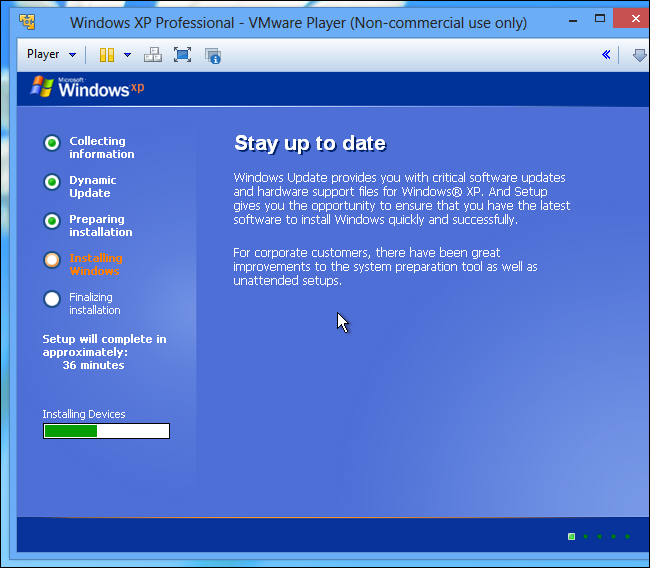
First, download and install VMware Player on your computer. Once it’s installed, launch it and create a new virtual machine. Go through the setup process, providing either a Windows XP installation disc or a Windows XP disc image in ISO format.
Enter your product key, username, password, and other information. VMware Player will automatically install Windows XP inside the virtual machine, so you won’t have to do anything during the installation process. Just wait and let the process complete on its own — VMware Player will handle everything, including installing the VMware Tools package that enables the desktop integration features.
Integrating Windows XP with Windows 8
To make your Windows XP system integrate with Windows 8, click the Player menu in VMware Player and select Unity. This enables a special mode where your Windows XP applications will run on your Windows 8 desktop.
Any applications you have running when you enable Unity mode will appear on your Windows 8 desktop with their own icons on Windows 8′s taskbar.

To launch applications running in Windows XP mode, move your mouse to the lower-left corner of the screen and use the VMware menu to launch applications from the Windows XP system. They’ll appear on your Windows 8 desktop, too.

To create direct links to such applications, right-click their shortcuts in the VMware launcher menu and select Create Shortcut on Desktop. You’ll get a shortcut you can click to launch the application.

At any time, you can click the Windows XP menu and select Exit Unity to disable Unity mode and confine your Windows XP applications to a single virtual machine window.
VMware Player automatically sets up drag-and-drop and copy-and-paste integration, so you’ll be able to use the applications much like they were running inside Windows 8. However, they aren’t running in Windows 8, so they won’t have access to the every file on your Windows 8 system. You may want to set up shared folders from the virtual machine’s settings window so you can share files between your Windows 8 system and Windows XP applications.


Microsoft will be ending support for Windows XP on April 8, 2014 after 12 and a half years of supporting... [Read Article]
However, Windows XP mode isn’t forever — Microsoft wants businesses to upgrade their applications and ensure they’ll continue to work on newer versions of Windows rather than depending on Windows XP forever. It’s a good idea to upgrade to applications that work on modern versions of Windows and not depend on a Windows XP virtual machine, but other virtualization programs will continue to provide a failsafe option even while Microsoft no longer offers Windows XP Mode.
How to Get Windows XP Mode on Windows 8
How to Get Windows XP Mode on Windows 8
“Windows XP Mode” isn’t included with Windows 8. Microsoft will soon be discontinuing support for Windows XP and doesn’t want anyone using it, even in a virtual machine. However, you can easily set up your own Windows XP mode in Windows 8.
You can virtualize Windows XP with almost any virtual machine program, but we’ll cover a solution that gives you Windows XP-mode like desktop and taskbar integration on Windows 8.
How Windows XP Mode Worked
If you're worried that some of your old but trusty software applications won't run on Windows 7, Microsoft solves the issue with XP Mode. Today we bring you an overview of XP Mode by looking at how to install it, what it looks like, and determining if you system can run it. [Read Article]
Microsoft one-upped their competitors by including a fully licensed copy of Windows XP, offering a nicer experience than installing Windows XP in VirtualBox and having all your old Windows XP applications confined to the virtual machine window.
Windows XP mode isn’t available on Windows 8, but you can reproduce it pretty closely with VMware Player. You could also use VirtualBox or another virtual machine solutions, like the Hyper-V virtualization feature included with Windows 8. However, VMware Player offers Windows XP-mode-like integration features — you can create direct shortcuts to Windows XP applications and have unique taskbar icons for each virtualized program.
Windows 8 doesn’t include a licensed copy of Windows XP, so you’ll need a copy of Windows XP to set this up. If you have an old Windows XP disc lying around, it will do. VMware Player is completely free. Unlike Windows XP mode, which was only available for Professional, Ultimate, and Enterprise editions of Windows 7, you can set this up on any edition of Windows 8.
Note that VMware Player is only free for home users, so you may want to use VirtualBox or upgrade to the paid VMware Workstation if you need Windows XP Mode for business purposes.
Setting Up Windows XP Mode With VMware Player
First, download and install VMware Player on your computer. Once it’s installed, launch it and create a new virtual machine. Go through the setup process, providing either a Windows XP installation disc or a Windows XP disc image in ISO format.Enter your product key, username, password, and other information. VMware Player will automatically install Windows XP inside the virtual machine, so you won’t have to do anything during the installation process. Just wait and let the process complete on its own — VMware Player will handle everything, including installing the VMware Tools package that enables the desktop integration features.
Integrating Windows XP with Windows 8
To make your Windows XP system integrate with Windows 8, click the Player menu in VMware Player and select Unity. This enables a special mode where your Windows XP applications will run on your Windows 8 desktop.Any applications you have running when you enable Unity mode will appear on your Windows 8 desktop with their own icons on Windows 8′s taskbar.
To launch applications running in Windows XP mode, move your mouse to the lower-left corner of the screen and use the VMware menu to launch applications from the Windows XP system. They’ll appear on your Windows 8 desktop, too.
To create direct links to such applications, right-click their shortcuts in the VMware launcher menu and select Create Shortcut on Desktop. You’ll get a shortcut you can click to launch the application.
At any time, you can click the Windows XP menu and select Exit Unity to disable Unity mode and confine your Windows XP applications to a single virtual machine window.
VMware Player automatically sets up drag-and-drop and copy-and-paste integration, so you’ll be able to use the applications much like they were running inside Windows 8. However, they aren’t running in Windows 8, so they won’t have access to the every file on your Windows 8 system. You may want to set up shared folders from the virtual machine’s settings window so you can share files between your Windows 8 system and Windows XP applications.
Microsoft will be ending support for Windows XP on April 8, 2014 after 12 and a half years of supporting... [Read Article]
However, Windows XP mode isn’t forever — Microsoft wants businesses to upgrade their applications and ensure they’ll continue to work on newer versions of Windows rather than depending on Windows XP forever. It’s a good idea to upgrade to applications that work on modern versions of Windows and not depend on a Windows XP virtual machine, but other virtualization programs will continue to provide a failsafe option even while Microsoft no longer offers Windows XP Mode.
Posted at 17:46 | by
Unknown
Tuesday, 18 February 2014
Clean Uninstall any program from Your PC..

How To Full Remove(uninstall) any Program From Your PC
Clean Uninstall any program from Your PC..
Posted at 14:02 | by
Unknown
Sunday, 16 February 2014
Download Registered IDM6.19

Download Latest IDM Version


Password: topfixing
Solve All idm problems forever with 3 easy steps
Download Registered IDM6.19
Download Latest IDM Version
Password: topfixing
Posted at 15:45 | by
Unknown
Thursday, 13 February 2014
Disable Security Messages And Other System Tray Notifications In Windows 7
You can see security alerts when you set Firewall disabled in Windows XP and Windows Vista, and need to restart computer. Automatic Updates turned off etc. It is very irritating to see such message every time, especially when you have intentionally turned off the security features and are already aware of it’s implications.Windows 7, thankfully, has a new feature called Action Center which gives you more control as to what messages and notifications you like to see in the system tray.
Steps to Turn Off Windows Alerts And Notifications In Windows 7 Taskbar
1. Go to Control Panel –> System and Security –> Action Center.
2. Click Change Action Center settings in the left side panel.
3. You will find notifications under two sections: Security messages and Maintenance messages. Uncheck all those messages that you want to turn off.

The Security messages include Windows Update, Internet security settings, Spyware and related protection, Network firewall, User Account Control and Virus protection.
The Maintenance messages include Windows Backup, Check for updates and Windows Troubleshooting.
Disable Security Messages And Other System Tray Notifications In Windows 7
Disable Security Messages And Other System Tray Notifications In Windows 7
You can see security alerts when you set Firewall disabled in Windows XP and Windows Vista, and need to restart computer. Automatic Updates turned off etc. It is very irritating to see such message every time, especially when you have intentionally turned off the security features and are already aware of it’s implications.Windows 7, thankfully, has a new feature called Action Center which gives you more control as to what messages and notifications you like to see in the system tray.
Steps to Turn Off Windows Alerts And Notifications In Windows 7 Taskbar
1. Go to Control Panel –> System and Security –> Action Center.
2. Click Change Action Center settings in the left side panel.
3. You will find notifications under two sections: Security messages and Maintenance messages. Uncheck all those messages that you want to turn off.
The Security messages include Windows Update, Internet security settings, Spyware and related protection, Network firewall, User Account Control and Virus protection.
The Maintenance messages include Windows Backup, Check for updates and Windows Troubleshooting.
Posted at 19:26 | by
Unknown
How to Access Windows 7′s Real Administrator Account?
As you know, the User Account Control (UAC) system is the heart and soul of the security system in Microsoft Windows 7. It is designed to protect your system from inadvertent or malicious incidents that could compromise stability or security while you are logged on using an account with administrative privileges, where you have full access to the system. Of course, you can perform administrative operations simply by working through the UAC prompt. Or, if you totally dislike the UAC system, you can also easily disable it. For example, you can select the Never Notify setting on the User Account Control Setting window.
However, there certainly are times when it would just be nice to log on to your Windows 7 system with a good old-fashioned, full-fledged Administrator account. When you do, you’ll never encounter a UAC prompt.
In this edition of the Windows Desktop Report, I’ll explain how you can activate and use the real Administrator account in Windows 7.
Caveat
Now keep in mind that Microsoft has gone to great lengths to prevent you from using the real Administrator account and, as you can imagine, strongly discourages the technique I’m about to show you here. As such, I must emphasize that you should use the real Administrator account very sparingly — never make it your default modus operandi! With that being said, I also have to warn you that you use this technique at your own risk.
Activating the account
While you might think that since Microsoft discourages the use of Windows 7’s Administrator account, it is hidden deep within the bowels of the operating system. However, that’s not the case at all. In fact, to find the Administrator account you have to look no further than the Local Users and Groups tool.
To begin, open the Start menu, right-click the Computer icon, and select Manage from the context menu. When you see the Computer Management console, go to the navigation panel on the left and click the arrow next to Local Users and Groups to expand the branch. Then, click the Users folder. At this point you can see and select the Administrator account, as shown in Below.

Select the Administrator account.
With the Administrator account selected, click More Actions under Administrator in the Actions panel on the right and select Properties from the menu, as shown in Below.
With the Administrator account selected, click More Actions under Administrator in the Actions panel on the right and select Properties from the menu, as shown in Below.

Use the More Actions menu to access the Properties command.
When you see the Administrator Properties dialog box, just clear the Account Is Disabled check box, as shown inbelow, and click OK.
When you see the Administrator Properties dialog box, just clear the Account Is Disabled check box, as shown inbelow, and click OK.

The Administrator account is disabled by default.
Keep in mind that now that the Administrator Account is activated you can also work with the account in the User Accounts tool in the Control Panel.
Keep in mind that now that the Administrator Account is activated you can also work with the account in the User Accounts tool in the Control Panel.
Setting the password
By default, the Administrator account has a blank password, so the first order of business after activating the account is to set a password — preferably a complex password consisting of at least eight characters and using uppercase, lowercase, and numbers or special symbols.
With the Administrator account selected, click More Actions under Administrator in the Actions panel and select the Set Password command. You will be shown a warning that explains that resetting a password from outside the account itself can cause irreversible loss of information, as shown in Below.

When you select the Set Password command, you will see this warning.
However, since the Administrator Account has never been used, you can click Proceed with impunity. When you do, you’ll see the Set Password for Administrator dialog box, shown in Below, and can type the new password in both text boxes. Then, click OK.
However, since the Administrator Account has never been used, you can click Proceed with impunity. When you do, you’ll see the Set Password for Administrator dialog box, shown in Below, and can type the new password in both text boxes. Then, click OK.

You will be prompted to type the password for the Administrator account.
Logging in as the Administrator
Now that you’ve activated the Administrator Account and set the password, using the account is as simple as logging off. When the Log Off operation completes, you’ll see the Welcome screen and a user icon for the Administrator Account, as shown in Below. To log on as the Administrator, just click the icon and provide the correct password.

You will now see the Administrator account on the Welcome page.
When you do, you’ll never encounter a UAC prompt. Again, I must emphasize that you should use the real Administrator account sparingly and never make it your default mode of operation!
When you do, you’ll never encounter a UAC prompt. Again, I must emphasize that you should use the real Administrator account sparingly and never make it your default mode of operation!
What’s your take?
As you can see, it’s a relatively easy operation to activate the real Administrator account in Windows 7 once you know the technique. Now that you know how it’s done, are you likely to use the Administrator account? Have you disabled UAC? If so, do you think that you’ll re-enable it and use this technique instead? As always, if you have comments or information to share about this topic, please take a moment to drop by the TechRepublic Community Forums and let us hear from you.
How to Access Windows 7′s Real Administrator Account?
How to Access Windows 7′s Real Administrator Account?
As you know, the User Account Control (UAC) system is the heart and soul of the security system in Microsoft Windows 7. It is designed to protect your system from inadvertent or malicious incidents that could compromise stability or security while you are logged on using an account with administrative privileges, where you have full access to the system. Of course, you can perform administrative operations simply by working through the UAC prompt. Or, if you totally dislike the UAC system, you can also easily disable it. For example, you can select the Never Notify setting on the User Account Control Setting window.
However, there certainly are times when it would just be nice to log on to your Windows 7 system with a good old-fashioned, full-fledged Administrator account. When you do, you’ll never encounter a UAC prompt.
In this edition of the Windows Desktop Report, I’ll explain how you can activate and use the real Administrator account in Windows 7.
Caveat
Now keep in mind that Microsoft has gone to great lengths to prevent you from using the real Administrator account and, as you can imagine, strongly discourages the technique I’m about to show you here. As such, I must emphasize that you should use the real Administrator account very sparingly — never make it your default modus operandi! With that being said, I also have to warn you that you use this technique at your own risk.
Activating the account
While you might think that since Microsoft discourages the use of Windows 7’s Administrator account, it is hidden deep within the bowels of the operating system. However, that’s not the case at all. In fact, to find the Administrator account you have to look no further than the Local Users and Groups tool.
To begin, open the Start menu, right-click the Computer icon, and select Manage from the context menu. When you see the Computer Management console, go to the navigation panel on the left and click the arrow next to Local Users and Groups to expand the branch. Then, click the Users folder. At this point you can see and select the Administrator account, as shown in Below.
Select the Administrator account.
With the Administrator account selected, click More Actions under Administrator in the Actions panel on the right and select Properties from the menu, as shown in Below.
With the Administrator account selected, click More Actions under Administrator in the Actions panel on the right and select Properties from the menu, as shown in Below.
Use the More Actions menu to access the Properties command.
When you see the Administrator Properties dialog box, just clear the Account Is Disabled check box, as shown inbelow, and click OK.
When you see the Administrator Properties dialog box, just clear the Account Is Disabled check box, as shown inbelow, and click OK.
The Administrator account is disabled by default.
Keep in mind that now that the Administrator Account is activated you can also work with the account in the User Accounts tool in the Control Panel.
Keep in mind that now that the Administrator Account is activated you can also work with the account in the User Accounts tool in the Control Panel.
Setting the password
By default, the Administrator account has a blank password, so the first order of business after activating the account is to set a password — preferably a complex password consisting of at least eight characters and using uppercase, lowercase, and numbers or special symbols.
With the Administrator account selected, click More Actions under Administrator in the Actions panel and select the Set Password command. You will be shown a warning that explains that resetting a password from outside the account itself can cause irreversible loss of information, as shown in Below.
When you select the Set Password command, you will see this warning.
However, since the Administrator Account has never been used, you can click Proceed with impunity. When you do, you’ll see the Set Password for Administrator dialog box, shown in Below, and can type the new password in both text boxes. Then, click OK.
However, since the Administrator Account has never been used, you can click Proceed with impunity. When you do, you’ll see the Set Password for Administrator dialog box, shown in Below, and can type the new password in both text boxes. Then, click OK.
You will be prompted to type the password for the Administrator account.
Logging in as the Administrator
Now that you’ve activated the Administrator Account and set the password, using the account is as simple as logging off. When the Log Off operation completes, you’ll see the Welcome screen and a user icon for the Administrator Account, as shown in Below. To log on as the Administrator, just click the icon and provide the correct password.
You will now see the Administrator account on the Welcome page.
When you do, you’ll never encounter a UAC prompt. Again, I must emphasize that you should use the real Administrator account sparingly and never make it your default mode of operation!
When you do, you’ll never encounter a UAC prompt. Again, I must emphasize that you should use the real Administrator account sparingly and never make it your default mode of operation!
What’s your take?
As you can see, it’s a relatively easy operation to activate the real Administrator account in Windows 7 once you know the technique. Now that you know how it’s done, are you likely to use the Administrator account? Have you disabled UAC? If so, do you think that you’ll re-enable it and use this technique instead? As always, if you have comments or information to share about this topic, please take a moment to drop by the TechRepublic Community Forums and let us hear from you.
Posted at 19:24 | by
Unknown
Subscribe to:
Posts (Atom)


Blogger templates. Proudly Powered by Blogger.
